How to Easily Compare Two JSON Online: A Comprehensive Guide
JSON (JavaScript Object Notation) has become the de-facto standard for data exchange between web services and applications due to its human-readable format and lightweight nature. As developers and data professionals, we often encounter situations where we need to compare two JSON structures to identify differences, troubleshoot issues, or verify data integrity.
While a manual comparison of small JSON snippets might be feasible, it quickly becomes error-prone and time-consuming for larger, more complex data structures. This is where dedicated online tools for JSON comparison become invaluable.
Why is Comparing JSON Important?
There are several scenarios where comparing JSON data is crucial:
- Debugging APIs: When an API response changes unexpectedly, comparing the old and new JSON can pinpoint the exact modification.
- Configuration Management: Ensuring that configuration files (often in JSON) across different environments are identical or differ only in expected ways.
- Data Migration: Verifying that data migrated from one system to another maintains its original structure and content.
- Version Control: Understanding changes between different versions of data stored as JSON.
- Testing: Validating that expected JSON outputs match actual outputs during automated or manual testing.
How to Compare Two JSON Online Effectively
The process of comparing JSON online typically involves using a web-based tool designed specifically for this purpose. These tools usually provide a user-friendly interface to paste or upload your JSON data and visualize the differences.
Steps to Use an Online JSON Comparator:
- Open your preferred “compare two JSON online” tool in your web browser.
- Paste or upload your first JSON data into the designated “Input A” or “Left” panel.
- Paste or upload your second JSON data into the designated “Input B” or “Right” panel.
- Click the “Compare” or “Diff” button.
- Review the highlighted differences. Most tools will use colors to indicate added, deleted, or modified lines/values.
Key Features to Look for in a JSON Comparison Tool
When choosing an online tool to compare JSON, consider the following features:
- Clear Visual Differences: The tool should clearly highlight additions, deletions, and modifications using distinct colors.
- Formatted Output: Pretty-printing or formatting the JSON before comparison makes it easier to read.
- Syntax Highlighting: Helps in quickly understanding the structure of the JSON.
- Ignore Order of Keys: An option to ignore the order of keys within objects, as JSON object key order is often not significant.
- Ignore Whitespace: Ability to disregard minor formatting differences.
- Performance: The tool should handle large JSON files efficiently without freezing.
- Privacy: For sensitive data, ensure the tool does not store your JSON or offers client-side processing.
Example of JSON Difference
Consider these two JSON objects:
// JSON A
{
  "id": "user_123",
  "name": "Alice Wonderland",
  "email": "alice@example.com",
  "roles": ["admin", "editor"],
  "settings": {
    "theme": "dark",
    "notifications": true
  }
}

// JSON B
{
  "id": "user_123",
  "name": "Alice Smith",
  "email": "alice.smith@example.com",
  "status": "active",
  "roles": ["admin"],
  "settings": {
    "theme": "light",
    "notifications": true,
    "language": "en"
  }
}
An online JSON comparison tool would typically highlight:
"name": "Alice Wonderland"changed to"name": "Alice Smith""email": "alice@example.com"changed to"email": "alice.smith@example.com""status": "active"was added in JSON B- In
"roles","editor"was removed from JSON B - In
"settings","theme": "dark"changed to"theme": "light" - In
"settings","language": "en"was added in JSON B
Conclusion
Comparing two JSON online is a common task for anyone working with data exchange formats. Leveraging the right online comparison tool can save significant time and prevent errors, making your workflow smoother and more efficient. By understanding the importance and features of these tools, you can ensure data integrity and streamline your debugging and verification processes.
Next time you need to find discrepancies in your JSON data, remember that a quick search for “compare two JSON online” will lead you to powerful tools ready to assist you.
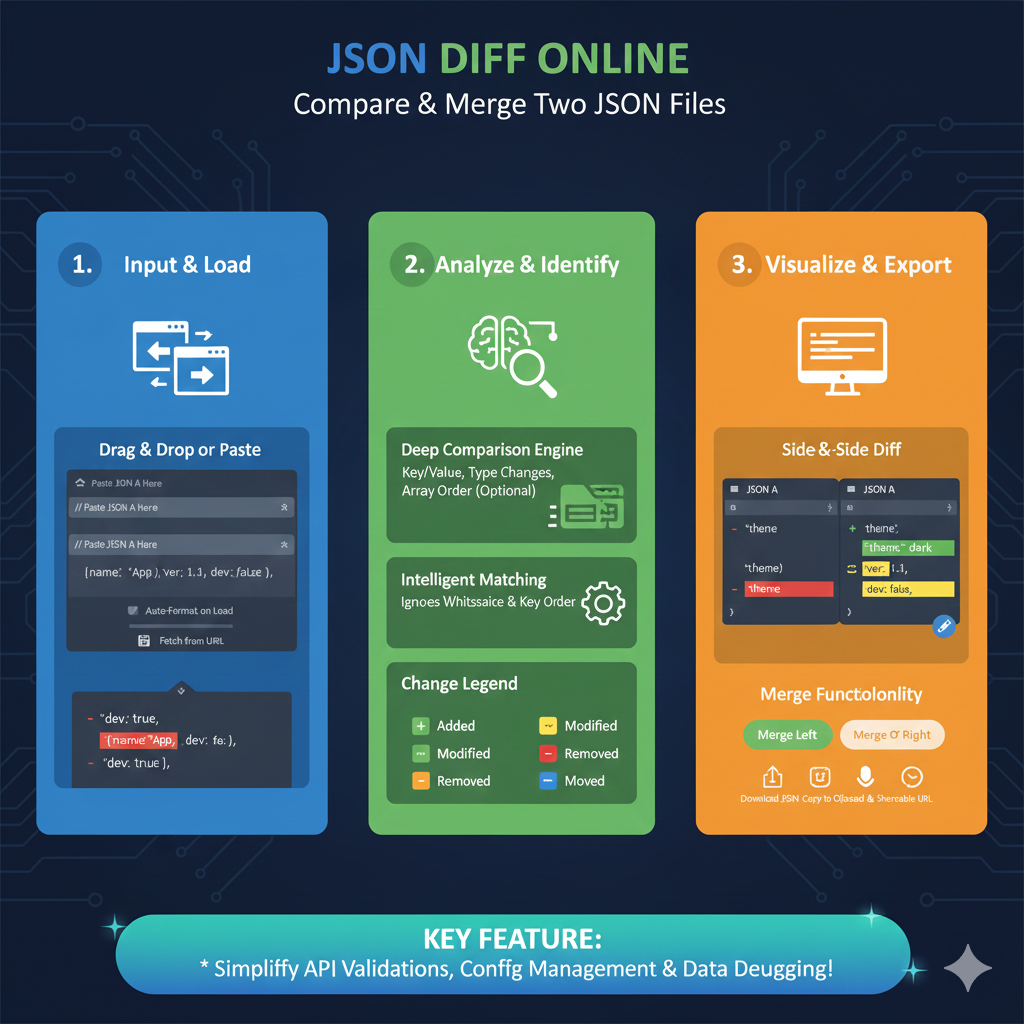
The image is an infographic titled “ONLINE JSON DIFF: The Faster Way to Compare & Validate Data”. It illustrates a comprehensive three-part workflow for using online tools to analyze discrepancies between two JSON datasets.
💻 Online JSON Diff Workflow
The process is broken down into three logical stages: Input, Deep Comparison, and Actionable Results.
1. Input & Pre-Processing (Blue)
This initial stage focuses on preparing your data for an accurate comparison:
- Upload or Paste: Users can easily drag-and-drop
.jsonfiles or paste raw text strings into the tool. - Auto-Beautify: The tool automatically formats and minifies messy JSON code to ensure structural clarity.
- Pre-Validation: It checks for syntax errors, such as missing commas or brackets, before starting the comparison.
2. Deep Comparison Engine (Green)
This stage explains the “intelligence” behind a JSON-specific diff tool, which goes beyond simple text matching:
- Semantic Analysis: The tool ignores insignificant changes like whitespace and key order to focus on actual data changes.
- Nested Object Tracking: It recursively traverses deeply nested structures to find changes at any level.
- Array Diffing: Smart algorithms detect when array items have been added, removed, or simply moved to a different position.
3. Visual Results & Exports (Orange)
The final stage provides clear, actionable feedback for developers and QA teams:
- Side-by-Side View: Differences are highlighted in a split-screen view for easy manual review.
- Color-Coded Legend:
- Added (Green): New keys or values present in the second file.
- Removed (Red): Data that existed in the original but is missing now.
- Modified (Yellow): Keys that exist in both but contain different values.
- One-Click Exports: Users can download the diff as a JSON Patch (RFC 6902) or save the visual report as a PDF.
learn for more knowledge
Json parser-> Fastest JSON Parser Python for Peak Performance: Why Orjson and Msgspec are the Top Contenders – json parse
Json web token ->How to Implement jwt token node js Applications – json web token
Mykeywordrank-> How to Use a Rank Checker Effectively to Boost Your SEO – keyword rank checker
Fake Json –>How to Use Dummy API JSON for Faster Development and Testing: Leveraging Fake APIs, JSON, and Mockaroo
Leave a Reply