Introduction to JSON Comparison
In the world of web development, APIs, and data exchange, JSON (JavaScript Object Notation) has become an indispensable format. Whether you’re debugging an API response, verifying configuration files, or simply understanding data changes, the need to compare 2 JSON files online arises frequently. Manual comparison of large JSON structures can be tedious and error-prone. Fortunately, numerous online tools offer efficient solutions to highlight differences, making your development workflow smoother and more accurate.
Why Use Online Tools to Compare JSON?
Online JSON comparison tools provide several advantages over local software or manual inspection:
- Accessibility: You can access them from any device with an internet connection, without installing software.
- Speed: They often provide instant results, especially for moderately sized files.
- Ease of Use: Designed with user experience in mind, they typically feature intuitive interfaces.
- No Setup: Simply open your browser, paste your JSON, and compare.
Key Features to Look for in a JSON Comparison Tool
When you’re looking to compare 2 JSON files online, here are some crucial features that make a tool effective:
- Side-by-Side View: Clearly displays both JSON inputs side-by-side.
- Diff Highlighting: Visually emphasizes additions, deletions, and modifications.
- Ignore Order/Whitespace: The ability to ignore differences in object key order or insignificant whitespace, focusing only on meaningful data changes.
- Tree View: Presents JSON in an expandable tree structure for easier navigation.
- Formatting and Validation: Often includes built-in JSON formatter and validator to ensure your input is correct before comparison.
How to Compare 2 JSON Files Online (Step-by-Step)
Comparing two JSON files online is a straightforward process:
- Step 1: Choose a Reliable Online Tool. Search for “compare JSON online” or “JSON diff tool” to find popular options.
- Step 2: Paste Your JSON Data. You will typically find two input fields. Paste your first JSON file’s content into the left field and the second into the right field. Some tools also allow uploading files.
- Step 3: Initiate the Comparison. Click the “Compare” or “Diff” button.
- Step 4: Review the Differences. The tool will display the comparison results, often highlighting the exact lines or values that differ. Pay attention to color-coding (e.g., green for additions, red for deletions, yellow for modifications).
Example of JSON Difference Highlighting
Imagine you have two JSON objects:
// File 1
{
  "name": "Product A",
  "price": 100,
  "features": ["color", "size"]
}

// File 2
{
  "name": "Product A",
  "price": 120,
  "features": ["color", "material", "size"]
}
An online tool would likely highlight "price": 120 as modified from 100, and "material" as an addition to the features array in File 2.
Tips for Effective JSON Comparison
- Validate Your JSON First: Ensure both your JSON inputs are valid before comparing. Most tools have built-in validators.
- Use Pretty Print: Formatted (pretty-printed) JSON is much easier to read and compare. Many tools offer this functionality.
- Understand the Options: Explore options like ignoring array order, ignoring whitespace, or specific key exclusions if the tool provides them.
- Secure Data: For sensitive data, ensure you are using a trusted tool or consider local comparison methods.
Conclusion
The ability to efficiently compare 2 JSON files online is a vital skill for anyone working with data and APIs. By leveraging the right online tools, you can quickly pinpoint discrepancies, validate data, and maintain high accuracy in your projects. Make these tools a regular part of your development toolkit to save time and reduce errors.
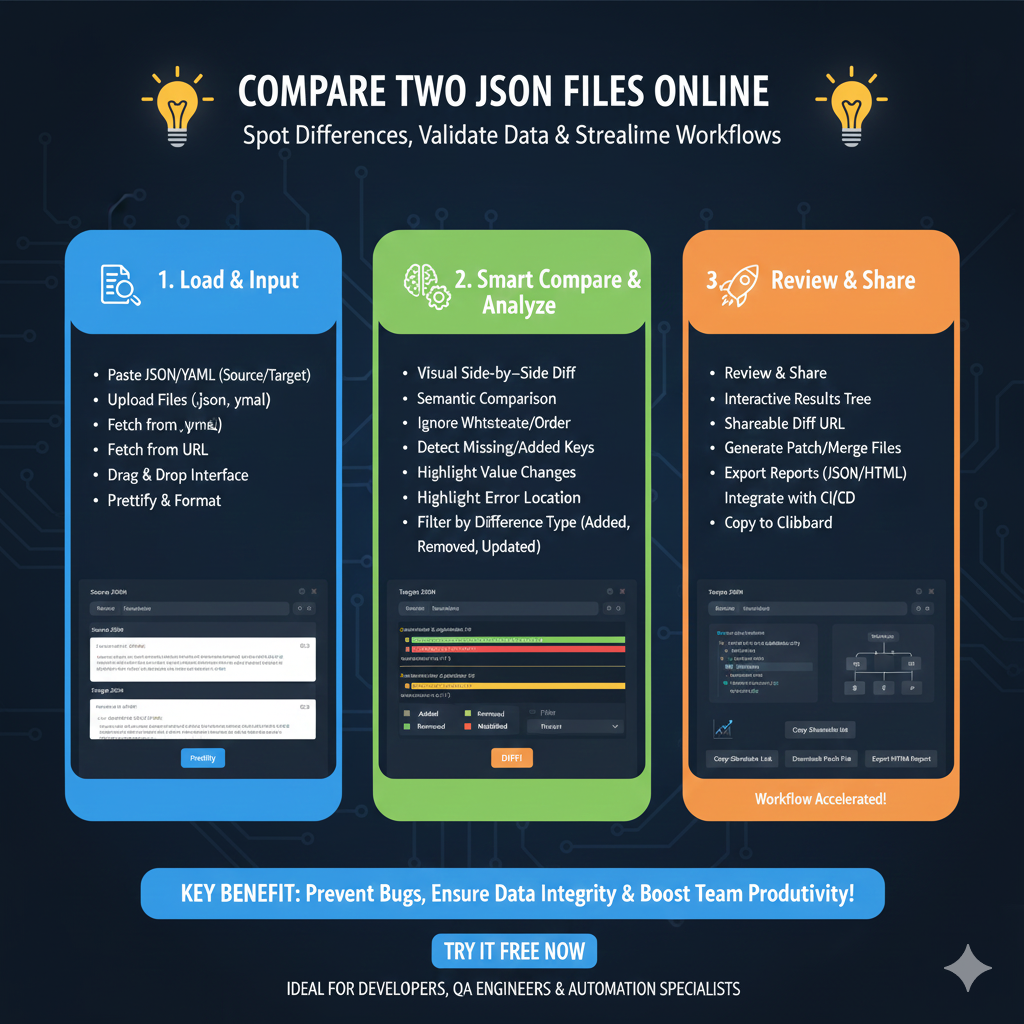
The infographic titled “COMPARE TWO JSON FILES ONLINE: Spot Differences, Validate Data & Streamline Workflows” outlines a professional process for identifying discrepancies between data sets through an intuitive online interface.
🔄 The Online JSON Comparison Lifecycle
This tool is designed to help developers and QA engineers quickly resolve data inconsistencies across three core stages:
1. Load & Input (Blue)
This initial phase focuses on getting your data into the comparison engine with maximum flexibility:
- Multiple Ingestion Methods: Users can Paste JSON/YAML directly, Upload Files (.json, .yaml), or Fetch from a URL.
- User-Friendly Interface: Features a Drag & Drop interface for rapid file loading.
- Pre-Processing: Includes a Prettify & Format function to ensure both data sets are readable before the comparison begins.
2. Smart Compare & Analyze (Green)
This section highlights the intelligent logic used to find meaningful differences:
- Visual Side-by-Side Diff: Displays changes in a dual-pane view for easy manual inspection.
- Semantic Intelligence: Performs a Semantic Comparison that ignores non-essential factors like whitespace or the specific order of keys.
- Deep Detection: Automatically identifies Missing or Added Keys and highlights specific Value Changes.
- Targeted Filtering: Users can filter results by difference type, such as Added, Removed, or Updated, and quickly jump to error locations.
3. Review & Share (Orange)
The final stage transforms the analysis into shareable assets and actionable code:
- Interactive Exploration: View results through an Interactive Results Tree for hierarchical data exploration.
- Collaborative Tools: Generate a Shareable Diff URL to show findings to team members instantly.
- Data Export: Export comprehensive reports in JSON or HTML formats, or generate Patch/Merge Files to synchronize the data sets.
- Workflow Integration: Seamlessly integrate results into CI/CD pipelines or simply Copy to Clipboard for immediate use.
learn for more knowledge
Mykeywordrank-> SEO Search Engine Optimization: Mastering the Search Engine for Traffic – keyword rank checker
json web token->jwt spring boot: How to Secure Your spring boot APIs with jwt authentication and jwt token – json web token
json parser->How to Parse json file parser- A Comprehensive Guide for Developers – json parse
Fake Json –>How to Easily Use Dummy JSON URL for Efficient Testing and Development – fake api
Leave a Reply