Introduction: Why Comparing JSON Files is Crucial
In the fast-paced world of web development and data management, accurately comparing JSON files is a common and critical task. Whether you’re debugging API responses, managing configuration files, or reviewing code changes, the ability to quickly spot json differences between two JSON structure can save hours of manual effort. This guide will walk you through how to compare JSON files online effectively, ensuring you catch every discrepancy with ease.
Key Use Cases for JSON Comparison Tools
- Debugging APIs: Identify unexpected changes in API responses between different versions.
- Configuration Management: Ensure consistency across various application settings or environments.
- Data Validation: Confirm json data integrity after transformation or migration between systems.
- Troubleshooting: Pinpoint the exact changes that might be causing an issue by performing a quick json diff.
The Power of Online JSON Comparison Tools
While you could manually scan two JSON files, this approach is highly inefficient and prone to human error, especially with large or complex structures. Online JSON comparison tools are designed to automate this process, providing a visual, side-by-side comparison that highlights differences instantly.
Key Features of a JSON Compare Tool
A powerful json compare tool should go beyond simple text comparison:
- Structure-Aware Diff: It understands the JSON structure (objects and arrays), meaning it can often ignore non-semantic differences like whitespace and key order, focusing only on meaningful value and structure changes.
- Formatting/Prettifying: Tools often json format minified JSON files into a readable structure for a clearer diff view before comparison.
- Difference Highlighting: Clearly marks added, deleted, or modified lines/nodes, often with color-coding.
- JSON Validator: Many tools include a json validator to ensure the json file input is correct before attempting the comparison.
How to Compare JSON Files Online: A Step-by-Step Guide
Using an online json comparison tool is straightforward. Here’s a general workflow:
- Access the Tool: Search for SEO tools like “compare json file online“, “json diff tool“, or “json compare” and navigate to a reputable website.
- Input Files: You can either copy and paste your first json data into the designated input area (e.g., “Left JSON”) or use the import files option.
- Input Second JSON: Paste or import files for your second json file into the other area (e.g., “Right JSON”).
- Initiate Comparison: Click the “Compare”, “Diff”, or “Analyze” button.
- Review the Results: The tool will display the two JSON files side-by-side, with json differences clearly highlighted. Look for color-coding (Green for additions, Red for deletions, Yellow/Blue for modifications) in the diff view.
Example JSON for Comparison: Spotting JSON Differences
Let’s consider two simple JSON objects:
JSON File 1:
JSON
{
  "product": "Laptop Pro",
  "version": "1.0.0",
  "price": 1200
}
JSON File 2 (Differences Highlighted in a Diff View):
JSON
{
  "version": "1.0.1",
  "product": "Laptop Pro",
  "price": 1250,
  "status": "available"
}
A good online json compare will show:
"version": Modified value."price": Modified value."status": Added field (new json data).
Note that the order of "version" and "product" changed in JSON File 2, but an intelligent comparison tool will ignore this structure change and focus on the data.
Best Practices for Efficient JSON Comparison
- Pre-format Your JSON: If your JSON is minified, using a json format tool first ensures better readability in the diff view.
- Handle Unordered Data: If comparing arrays where the order doesn’t matter (a common API scenario), ensure the json compare tool has a “smart” or “by key” comparison setting to ignore array element order.
- Security and Share: For highly sensitive json data, avoid online tools or ensure they explicitly state the data is processed only in the browser (client-side). Some tools offer a “share” feature via URL encoding for collaboration.
Conclusion
Mastering how to compare JSON files online is an indispensable skill for anyone working with json data in modern web environments. By leveraging the right online JSON comparison tools and understanding features like json format, json diff, and structure-aware comparison, you can drastically reduce the time and effort spent on identifying json differences, ensuring accuracy, and maintaining the integrity of your JSON files.
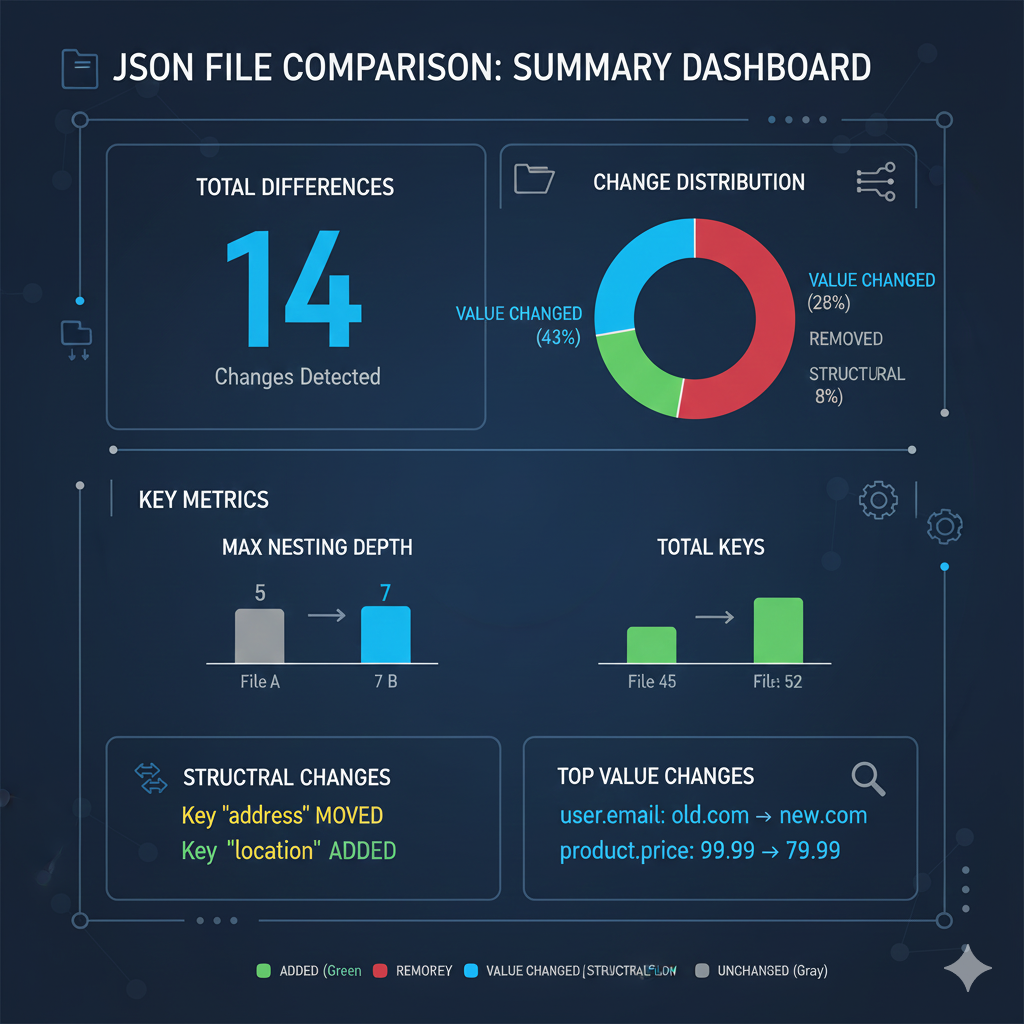
The image is a dashboard-style infographic titled “JSON FILE COMPARISON: SUMMARY DASHBOARD”. It provides a high-level, quantitative overview of the differences found between two JSON files (File A and File B), rather than showing every line-by-line difference.
📊 JSON File Comparison: Summary Dashboard
The dashboard organizes the comparison metrics into four key areas:
1. Total Differences & Change Distribution
- Total Differences: 14 Changes Detected. This is the headline metric for the comparison.
- Change Distribution (Donut Chart): Shows the percentage breakdown of the changes found:
- Value Changed: 43%.
- Removed: 28%.
- Structural: 8%.
- Added: (Implied remaining percentage, shown in Green on the chart).
2. Key Metrics
This section provides context on the complexity of the files:
- Max Nesting Depth: File A had a depth of 5, while File B has increased to 7.
- Total Keys: File A contained 45 keys, while File B contains 52 keys.
3. Structural Changes
This highlights the most important alterations to the file’s hierarchy:
- Key
addressMOVED. - Key
locationADDED. (This suggests theaddresskey was moved or replaced by a newlocationstructure).
4. Top Value Changes
This section lists concrete examples of data that were updated between the two files:
user.email: changed fromold.comtonew.com.product.price: changed from99.99to79.99.
The dashboard concludes with a legend confirming the color coding used: ADDED (Green), REMOREY (Removed), VALUE CHANGED/STRUCTURAL (Blue), and UNCHANGED (Gray).
learn for more knowledge
Json parser -> BeautifulSoup JSON Parser-Combining BeautifulSoup and JSON for Web Scraping – json parse
Json web token ->How to Use com.auth0.jwt for Secure JWT Handling in Java – json web token
Mykeywordrank-> SEO: Your Comprehensive Guide to Boosting Search Engine Optimization Rankings – keyword rank checker
Fake Json –>What Is JSON Mock API? (Beginner-Friendly Explanation) – fake api
Leave a Reply