Understanding JSON Comparison
JSON (JavaScript Object Notation) is a lightweight data-interchange format. It’s easy for humans to read and write and easy for machines to parse and generate. In modern web development, $\text{API}$ testing, and data validation, comparing two JSON objects or arrays is a common and crucial task. Whether you’re debugging an $\text{API}$ response, verifying data synchronization, or tracking configuration changes, an efficient JSON comparison can save a lot of time and prevent errors.
Why Use an Online JSON Comparison Tool?
While programmatic comparison tools and libraries exist, online JSON comparison tools offer several advantages, making them the preferred method to compare online:
- Accessibility: No installation required; simply open your browser to compare online.
- Speed: Quick and instant results, especially for smaller JSON structures and JSON data.
- Visualization: Many tools highlight differences visually in a diff view, making them easy to spot.
- Ease of Use: User-friendly interfaces often require just pasting your JSON string.
- Collaboration: Easily share comparison results.
How to Compare JSON Online: A Step-by-Step Guide
Comparing JSON online is generally a straightforward process. Here’s a typical workflow using a json compare tool:
- Find a Reliable Tool: Search for “JSON comparison online” or “diff JSON tool”.
- Open the Tool: Navigate to the chosen online JSON comparison website.
- Paste JSON Input: You’ll typically find two input areas. Paste your first JSON string into one and your second JSON string into the other. These can be inputs for two json files or raw json data.
- Initiate Comparison: Click a “Compare,” “Diff,” or similar button.
- Review Results: The tool will display the json differences, often highlighted in distinct colors (e.g., green for added, red for removed, yellow for modified).
Example JSON Comparison Scenario (Compare Data)
Let’s say you have two JSON objects you need to compare data:
JSON 1:
JSON
{
  "name": "Alice",
  "age": 30,
  "city": "New York",
  "hobbies": ["reading", "hiking"]
}
JSON 2:
JSON
{
  "name": "Alice",
  "age": 31,
  "city": "London",
  "hobbies": ["reading", "cycling"]
}
An online tool would clearly show that “age” has changed from $\text{30}$ to $\text{31}$, “city” from “New York” to “London”, and “hiking” in hobbies has been replaced by “cycling”. These are the key json differences found.
Key Features to Look for in a JSON Compare Tool
Not all online tools are created equal. To ensure an effective JSON comparison online, look for these features:
- Clear Visual Diff: Easy-to-understand color-coded differences in the diff view.
- Formatting Options: Ability to beautify or minify the JSON format.
- Ignoring Order: Option to ignore array element order for more semantic comparisons.
- Ignoring Whitespace: Crucial for comparing unformatted vs. formatted JSON.
- Error Handling: Robust parsing for invalid JSON.
- Privacy: Assurance that your data is not stored or shared when you compare online.
Conclusion
Mastering JSON comparison online is an essential skill for anyone working with data and $\text{APIs}$. By utilizing the right tools like a good json compare tool or json diff, you can quickly identify json differences, ensure data integrity, and streamline your development and testing workflows. Always choose an online comparison tools that offers clear visualization, robust features, and prioritizes your data’s privacy.
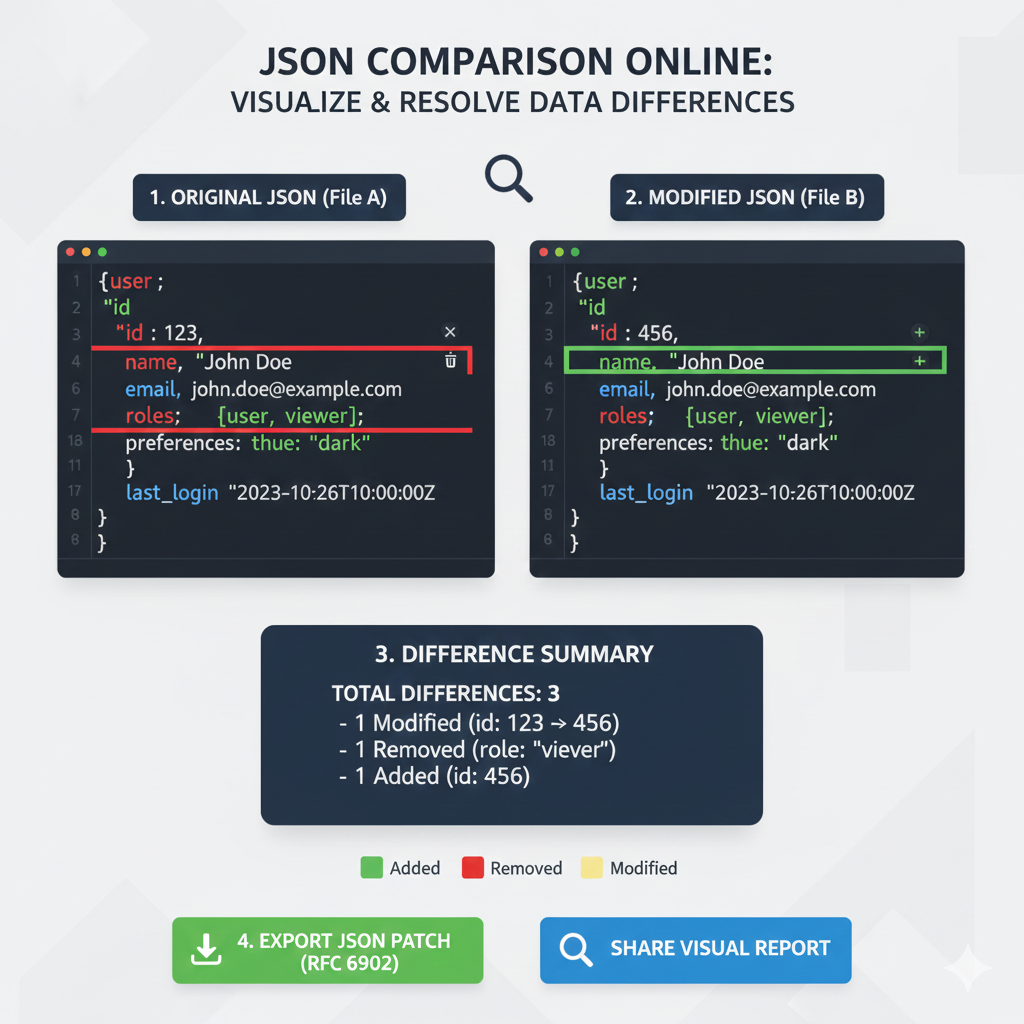
JSON Comparison Online
This infographic demonstrates the core function of a JSON comparison tool: identifying and summarizing data changes between an original file and a modified version.
1. Side-by-Side Comparison
The comparison contrasts the original data with the new data, using color to indicate the specific change.
| Status | 1. ORIGINAL JSON (File A) | 2. MODIFIED JSON (File B) |
| Modified | The id value is 123. | The id value is changed to 456 (highlighted in Yellow). |
| Removed | The roles array contains the value viewer. | The value viewer is missing from the roles array (highlighted in Red). |
| Added | The id value is missing. | A new id value of 456 is added (highlighted in Green). |
| Unchanged | Keys like name, email, preferences, and last_login are identical in both files. | These values remain the same and are unhighlighted. |
2. Difference Summary
The tool provides a concrete count and description of the changes found.
- TOTAL DIFFERENCES: 3
- 1 Modified: (id:
123$\to$456) - 1 Removed: (role:
"viewer") - 1 Added: (id:
456)
- 1 Modified: (id:
3. Actionable Output & Key
- Actionable Outputs: The tool offers options to Export JSON Patch (RFC 6902) and Share Visual Report.
- Color Key:
- Green: Added
- Red: Removed
- Yellow: Modified
learn for more knowledge
Json Parser ->What is JSON Parser Online? Complete Guide for Beginners – json parse
Json web token ->What Is JWT Token? (JSON Web Token Explained for Beginners) – json web token
Mykeywordrank ->Search Optimization and SEO: Mastering Visibility in Search Results – keyword rank checker
Fake Json ->Testing Software Tools: Best Tools & Software to Create Fake JSON Data for Testing – fake api
Leave a Reply