JSONCompare is an online tool or software used to compare two JSON objects or files. It highlights differences between the JSON structures, making it easier for developers to identify changes, added or removed keys, and modified values. JSONCompare is commonly used in API testing, debugging, and data validation. This powerful utility helps developers compare JSON quickly and accurately.
Why JSONCompare Is Important for API Testing and Data Validation
JSONCompare is important because JSON data is widely used in web applications and APIs. Tracking differences between JSON files manually can be time-consuming and error-prone, particularly with large or complex JSON objects. JSONCompare helps you:
- Quickly spot differences in JSON files or long JSON strings.
- Save time during debugging or API testing. You can use a JSONCompare utility like a JSON editor online to easily compare the
actualAPI response with theexpectedJSON object. - Validate API responses against expected data structures.
- Improve application development workflow and accuracy.
How JSONCompare Works: The Comparison Process
You provide two JSON objects—the original (or expected) and the modified (or actual) version. The JSONCompare tool scans both JSON files and generates a JSONCompareResult, which highlights the differences using a comprehensive comparison mechanism.
The tool highlights:
- Added keys.
- Removed keys.
- Modified values (the core compare data function).
Some tools also show nested differences, handle various format issues, and provide a side-by-side or inline comparison view for clarity.
Key Features of JSONCompare and Other Data Formats
Side-by-Side Comparison
The tool displays two JSON objects next to each other for easy visualization of differences. This feature is crucial when trying to compare JSON structures efficiently.
Highlight Changes
It uses color coding to show added, removed, or modified keys and values. This instant visual feedback from the JSON editor makes spotting differences trivial.
Supports Nested JSON and Data JSON
A robust JSONCompare tool can compare deeply nested JSON objects without losing clarity. It is designed specifically to handle the complex structure of data JSON.
JSON Editor Online, YAML, and CSV Support
Many advanced versions of JSONCompare offer features of a JSON editor online for cleaning or formatting the input before the comparison. Some tools can also handle comparisons for other data formats beyond JSON, such as YAML (a similar data serialization format) or allow exporting results to CSV or other file types.
Benefits of Using JSONCompare
Using a reliable JSONCompare utility offers significant advantages in the application development lifecycle:
- Speeds up debugging and API testing by providing immediate, clear feedback on differences.
- Reduces human error inherent in manual comparison of large JSON strings.
- Improves API and application development quality by enforcing data consistency.
- Helps teams identify and fix issues quickly using the comparison results.
How to Use JSONCompare Effectively
To leverage the full power of the JSON compare tool:
- Paste or upload the two JSON files to compare (the
expectedand theactualJSON data). - Use the side-by-side or inline view for clarity during the comparison.
- Review the color-coded differences in the JSONCompareResult.
- Validate your API responses against expected results, which is a key step in effective API testing.
- Export results for records or team collaboration.
Final Thoughts
JSONCompare is a must-have tool for developers working with JSON data and performing intensive API testing. It simplifies comparison, saves time, and ensures accuracy in testing and debugging APIs or applications. Using JSONCompare helps maintain data consistency and reduces errors in your projects, making it an essential part of your web security and quality assurance toolkit.
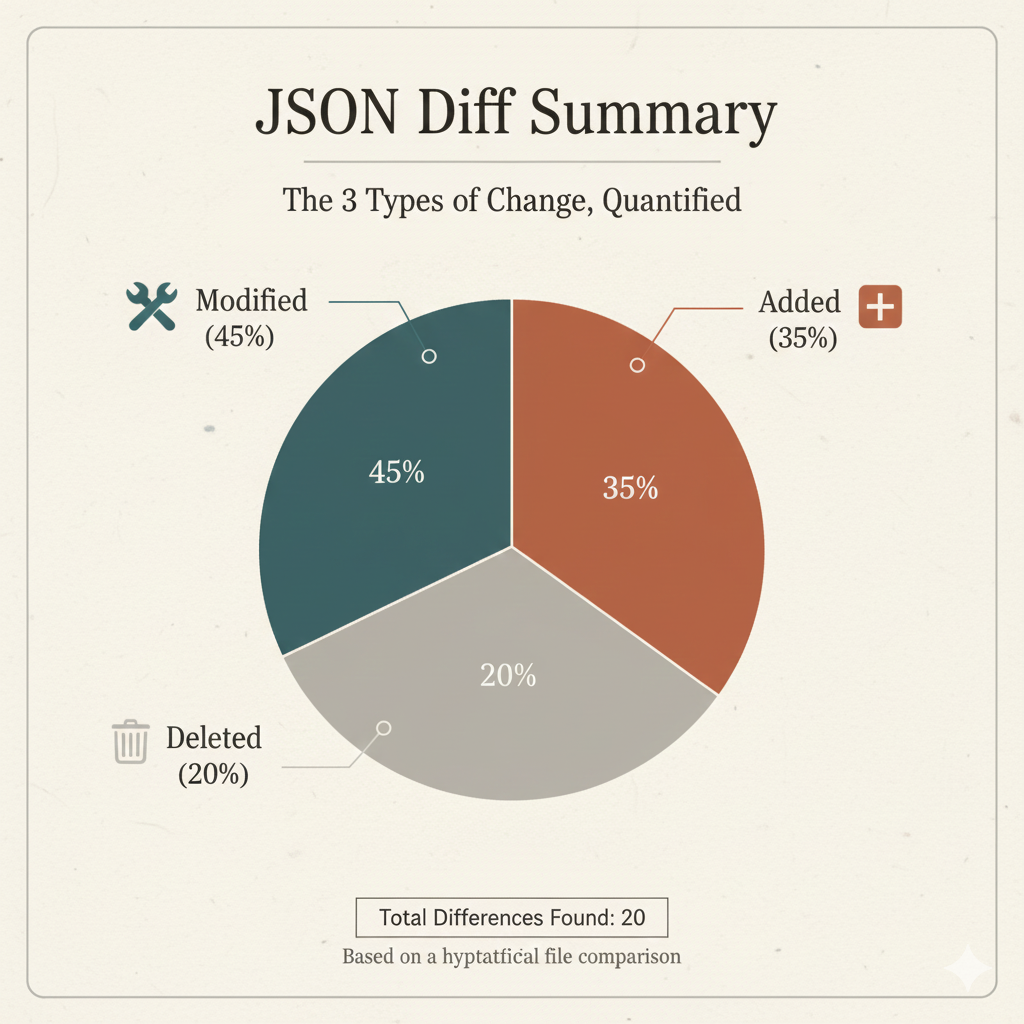
JSON Diff Summary: The 3 Types of Change, Quantified
This pie chart provides a high-level summary of the differences found when comparing two versions of a JSON file or object. It quantifies the three fundamental categories of changes, helping users instantly understand the nature of the file modifications.
(Based on the hypothetical data: Total Differences Found: 20)
Key Difference Categories
| Category | Proportion | Count (Out of 20) | Description & Impact |
| 🛠️ Modified | 45% | 9 | Value Alteration. This is the largest segment and represents elements (keys) that exist in both the original and new files, but whose values have been changed. This often signifies data updates or corrections. |
| ➕ Added | 35% | 7 | New Data. This represents keys, objects, or arrays that were introduced in the new file and did not exist in the original. This is common when adding new features, fields, or records. |
| 🗑️ Deleted | 20% | 4 | Data Removal. This represents elements that were present in the original file but have been removed in the new version. This segment is important for auditing data deprecation or cleanup. |
Strategic Insights
- Focus on Modification (45%): The high percentage of Modified elements suggests the change was primarily focused on updating existing records or configuration values rather than major structural overhaul (which would result in more Added or Deleted keys).
- Structural Health: A low percentage of Deleted items (20%) often indicates that the file structure remains largely intact, minimizing the risk of broken dependencies in code relying on those fields.
- Total Scope: Knowing the Total Differences Found (20) provides context, showing that the 45% modification rate applies to a relatively small, manageable set of changes.
Leave a Reply